This widget allows an administrator to add formatted text, graphics, Flash, and links to create a unique widget.
This widget is a great option if you have a static stand-alone “announcement” that you want everyone to see, but you also have additional announcements for specific audiences. The announcement widget can be used for the audience specific announcements and the static announcement can be placed in the Rich Text widget.
The Settings tab shows the Rich Text editor found throughout the LMS. Enter the text and/or links in the Design view or HTML view. Then click Save.
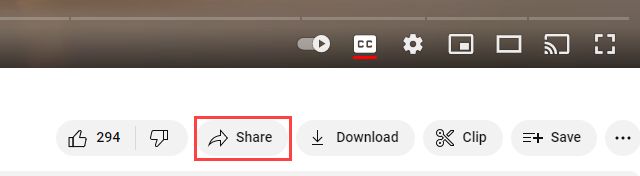
To embed a YouTube video, first find the desired video on YouTube. Directly below the video, click on the Share button.
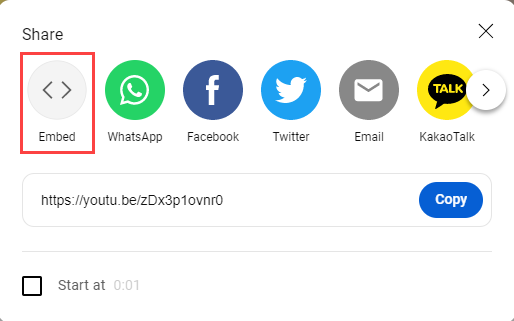
When you click on Share, YouTube will display a link and the options to embed, email, share through other applications, etc. Select Embed.
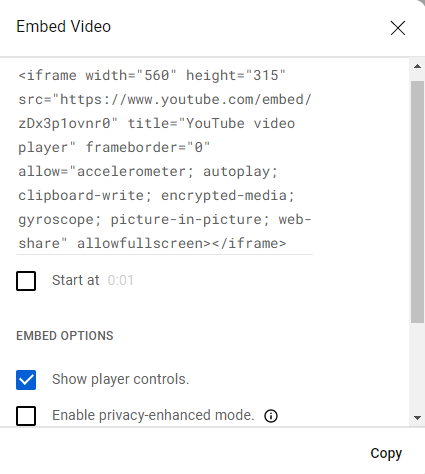
The expanded embed code will display. You may customize your code using the checkboxes below. The embed code will automatically adjust based on your selections.
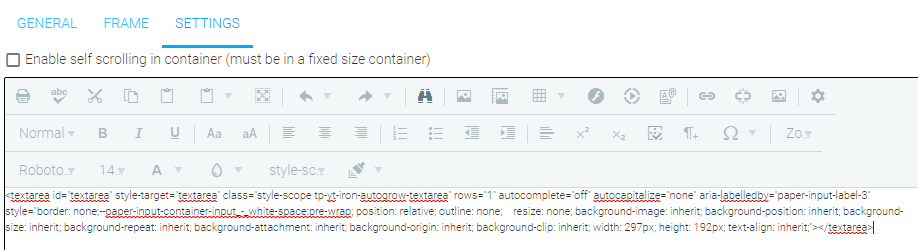
Copy the embed link from YouTube and paste it into the HTML view of the Settings tab. You can find the HTML view button at the bottom of the editor window.
Click Save when you are done.
You can also embed a deep link to a course, which will allow your users to launch a course directly from the widget. To do this, go to Wizards > Link Builder Wizard in the administrative menu.
In the link builder, select the option to launch an online course and click Next.
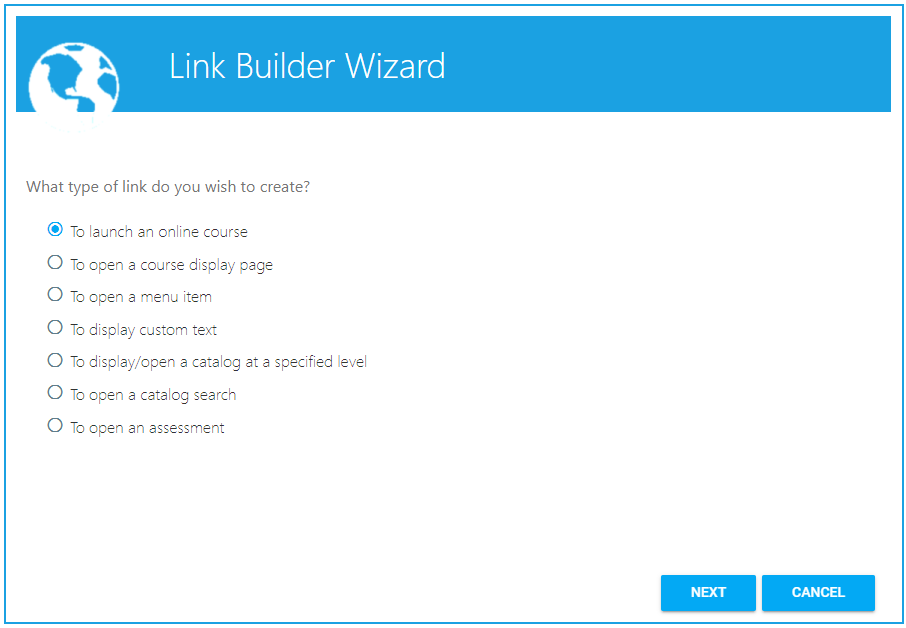
When prompted, type in the name of the selected course, then click Next.
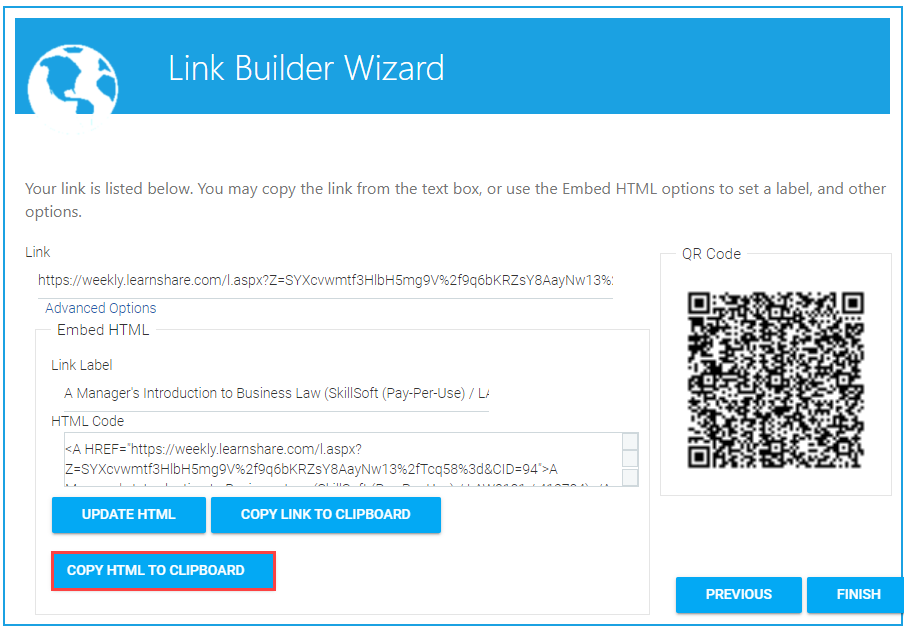
When the link is displayed, select the option to Copy HTML to Clipboard. Then click Finish.
Go to the Settings tab of the Rich Text widget. Select HTML view at the bottom of the editor window and paste the link.
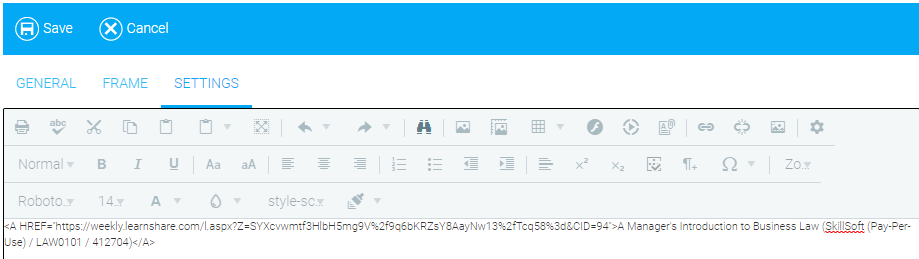
Click Save. The title of the course should now appear in the widget window. When a user clicks on this link, it will launch the course.
